AI Film Makerfor storyboards, shots, and short films
Create a shot with AI Film Maker using text or references. Review the settings and credit quote, then generate.
Generate individual clips: Basic 4–15 seconds · Pro 4–30 seconds. Assemble your film in your preferred editor.
Basic · Up to 15s · 480p / 720p
Exact credits shown before you generate. Failed jobs are refunded.
The last light
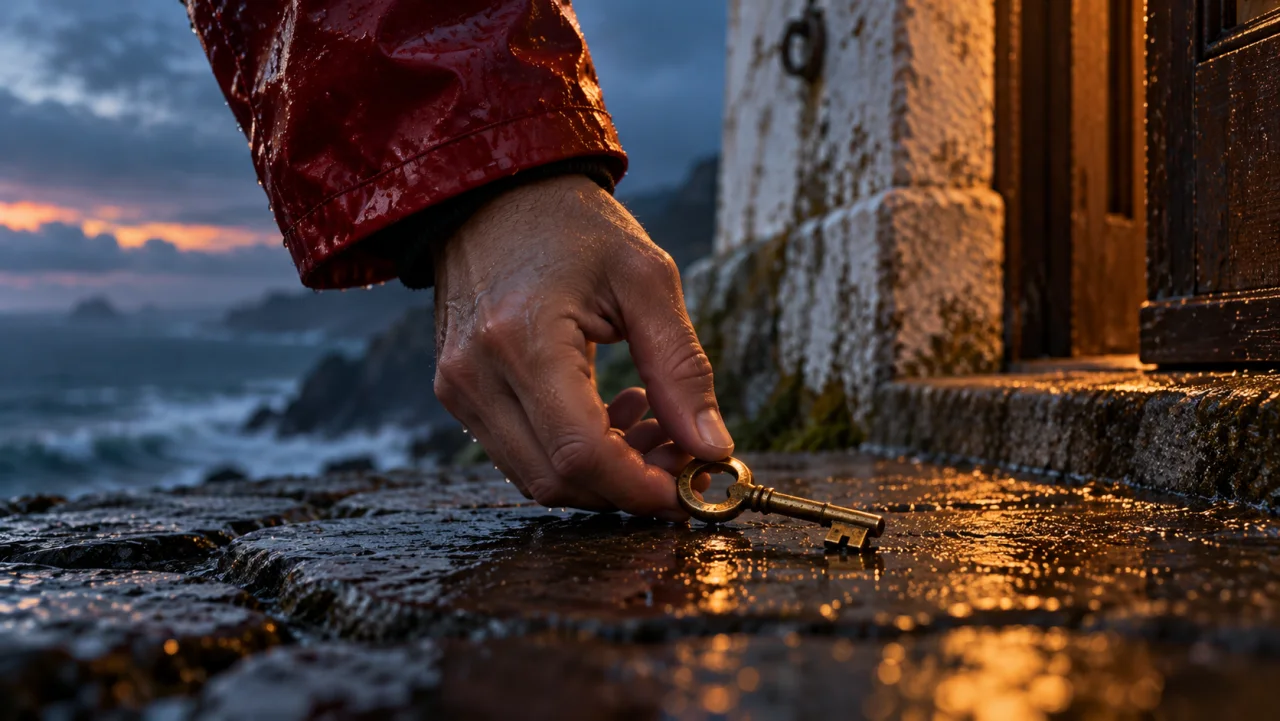
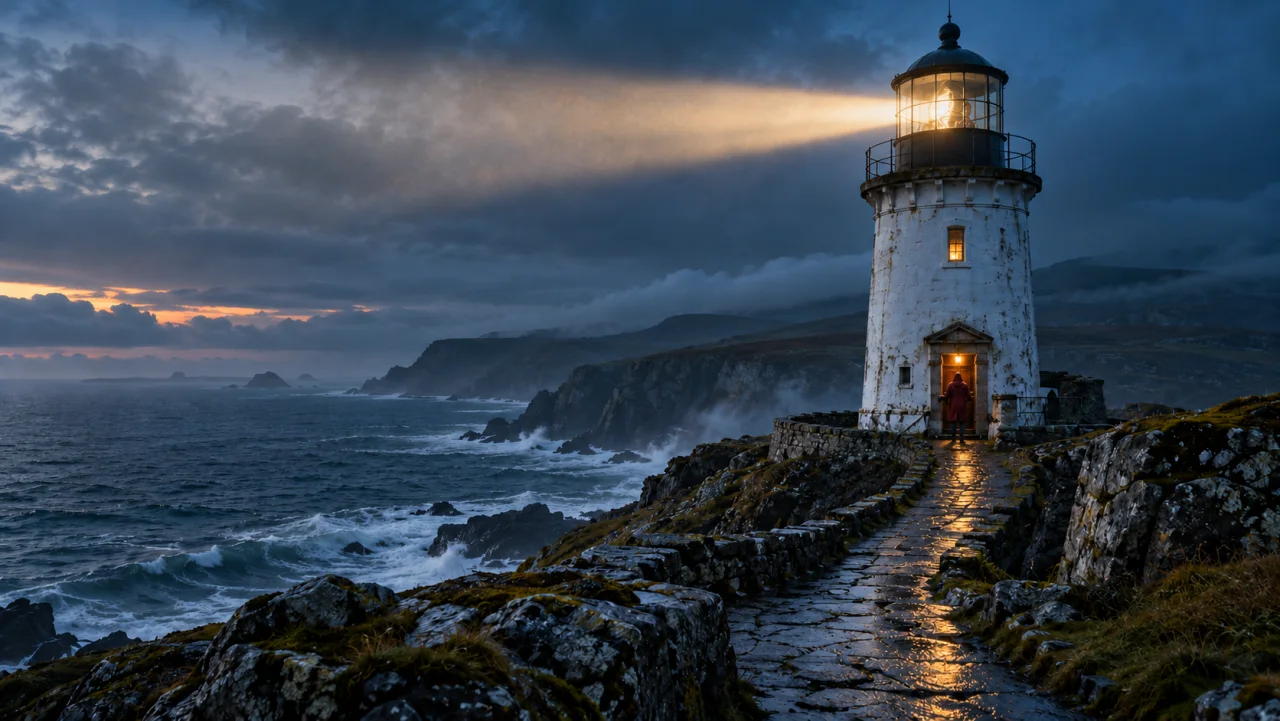
Concept storyboard: a lighthouse keeper discovers a key at dusk, and the beacon lights the coast. AI-created stills illustrate the shot plan.
Build your first scene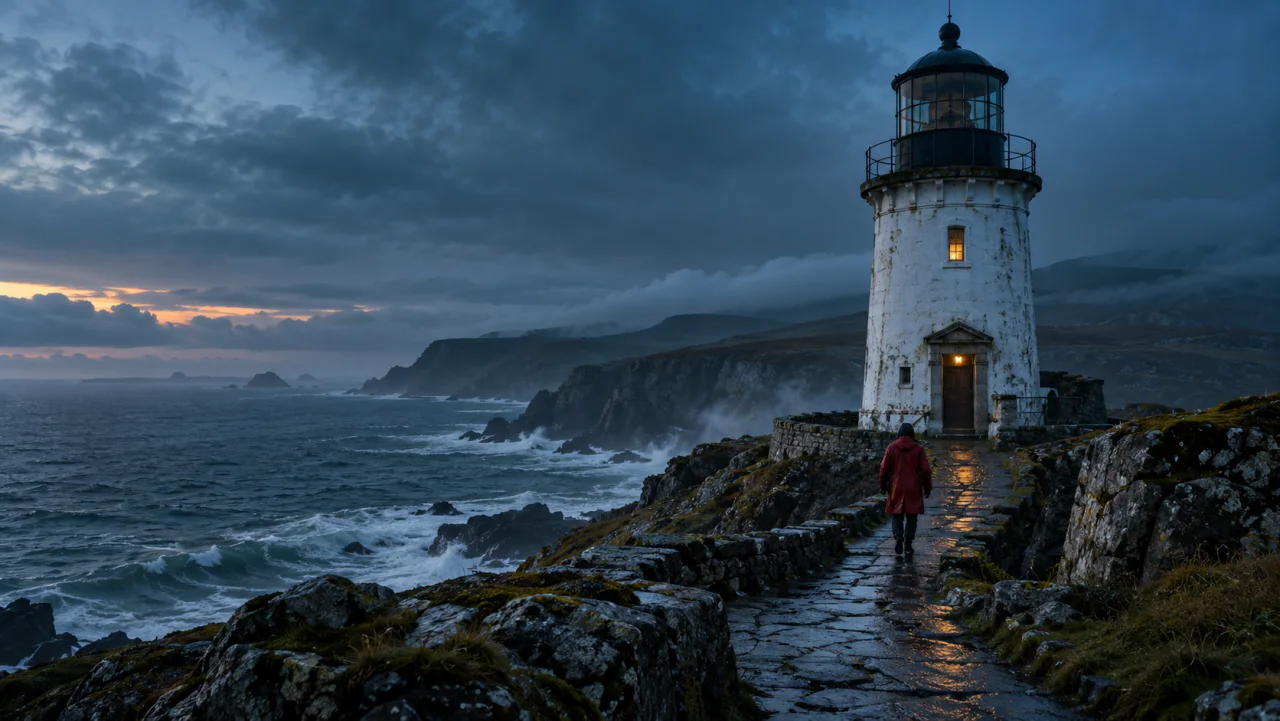
One storyboard. Three deliberate shots.
A useful storyboard gives every shot a job. Establish where the story happens, isolate the detail that changes it, then show the consequence. Select a beat below and send its prompt to the AI film maker. These prompts describe one connected short film, with the same place, evening light, and visual palette.
The button fills the prompt below. Review the model, duration, format, and credit quote before generating; reference images are added separately.
From a short-film idea to footage you can cut
An AI film maker is most useful when each generation answers a specific filmmaking question: does the opening establish the place, is the key detail clear, and does the ending follow? Keep a small storyboard beside your prompts rather than asking one clip to explain the entire plot.
Write the visual rules
Before generating shots, choose the subject, location, time of day, and two or three recurring visual details. For this storyboard, the red coat, cold sea, and warm window anchor the sequence. Reuse those details in each prompt. Change a camera move or action deliberately instead of rewriting everything between attempts.
Choose the right starting material
Start from text when exploring a composition. Use image-to-video when you already have a storyboard frame or an approved visual. Up to four reference images can guide a subject, scene, or style; use JPG, PNG, or WebP files up to 2 MB each. Upload only material you have permission to use. References guide generation, but do not guarantee identical characters across shots.
Review the cut before adding more
Compare each result against the storyboard: subject position, screen direction, weather, light, and the ending frame. If two shots will not connect, revise the weaker one before generating the next scene. A simpler action is often easier to assess than several events in one prompt. Keep the takes that support the story, rather than keeping every generation.
Download, assemble, and finish
Download the selected clips from My Videos and arrange them in your own video editor. Set the pacing, trim overlaps, add titles, and finish dialogue, music, and subtitles there. VidMake AI Film Maker generates footage; it does not automatically assemble your storyboard into a finished movie. Review sound and visual continuity again after the clips are placed together.
Choose settings for the shot, not the whole film
Basic supports 480p and 720p with 4–15 second text or image generations. Pro supports 4–30 seconds and adds 1080p, more aspect ratios, and an optional end frame in image-to-video. For video references, Basic accepts 2–15 seconds of input and generates 5–15 seconds; Pro accepts 2–30 seconds of input and generates 4–30 seconds. Available choices appear in the generator.
Plan the takes as well as the story
The credit quote depends on the selected model, duration, resolution, and reference video where applicable. Check the quote before every generation; a new take is a new request. Generation requires sign-in and sufficient credits. Review plans and the credit guide before budgeting a short film, especially if your storyboard needs alternate shots.
Questions before your first scene
Can the AI film maker turn a full screenplay into a movie?
Use VidMake AI Film Maker to create individual clips from scene prompts or references. Split a screenplay into a storyboard and manageable shots first, then assemble the selected footage in another editor. Automatic screenplay breakdown and full-film assembly are not available.
Does it generate a storyboard for me?
This page offers an example storyboard and reusable prompts for planning. You choose the sequence and can bring your own storyboard images into image-to-video. The AI film maker generates motion footage from your input, rather than automatically drawing a complete board.
How can I keep shots consistent?
Reuse approved references, subject descriptions, lighting, and aspect ratio. Review faces, objects, direction, and backgrounds after each generation. References improve guidance, but continuity still needs your review; exact identity and motion are not guaranteed.
Can I add audio to a short film?
The generator offers optional generated audio. Listen to each take before using it; exact dialogue and soundtrack continuity are not guaranteed. For a controlled final short film, finish voice, music, sound levels, and subtitles in your editor.
Give the next scene a clear purpose
Start with one storyboard beat and review one shot at a time. When the footage is ready, choose a publishing format for your finished film.
Return to the shot generator