FLEX YOUR SOFT SIDE
Bicep Heart AI
Turn one photo into the arm-heart pose.
- 01Relax
- 02Flex
- 03Heart
Soft Side.
 ONE PHOTO
What Is Bicep Heart AI?
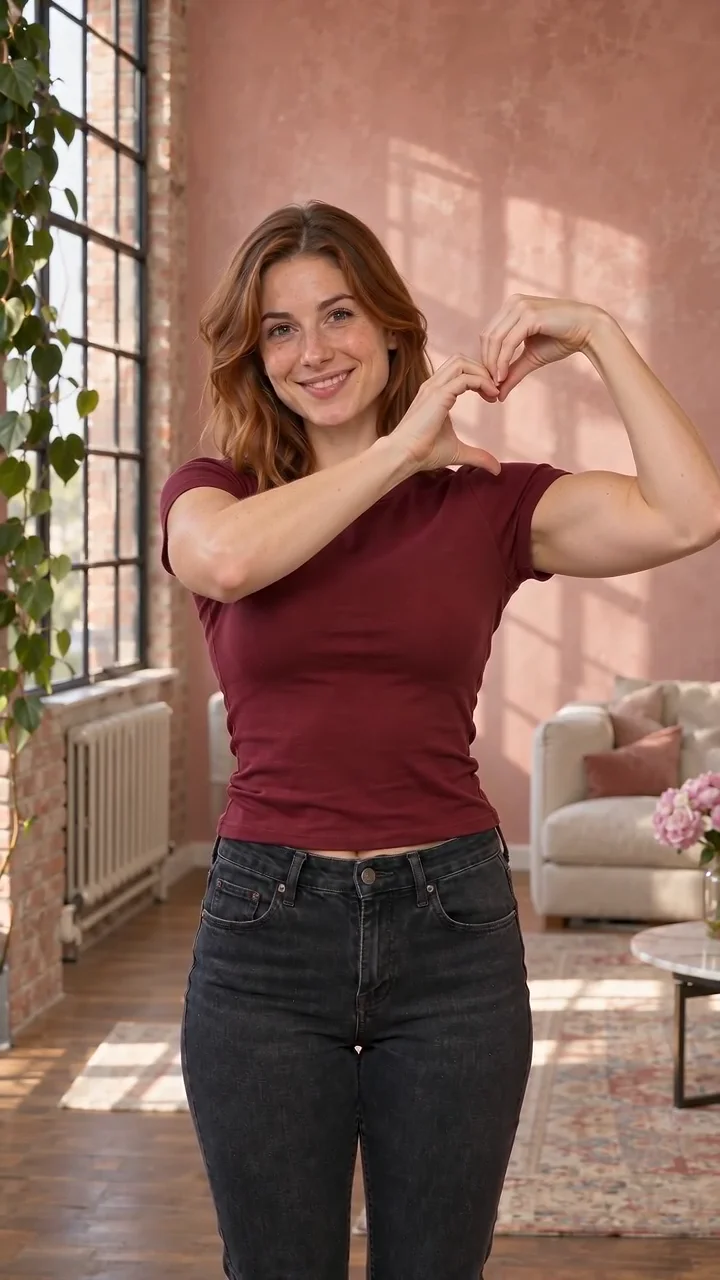
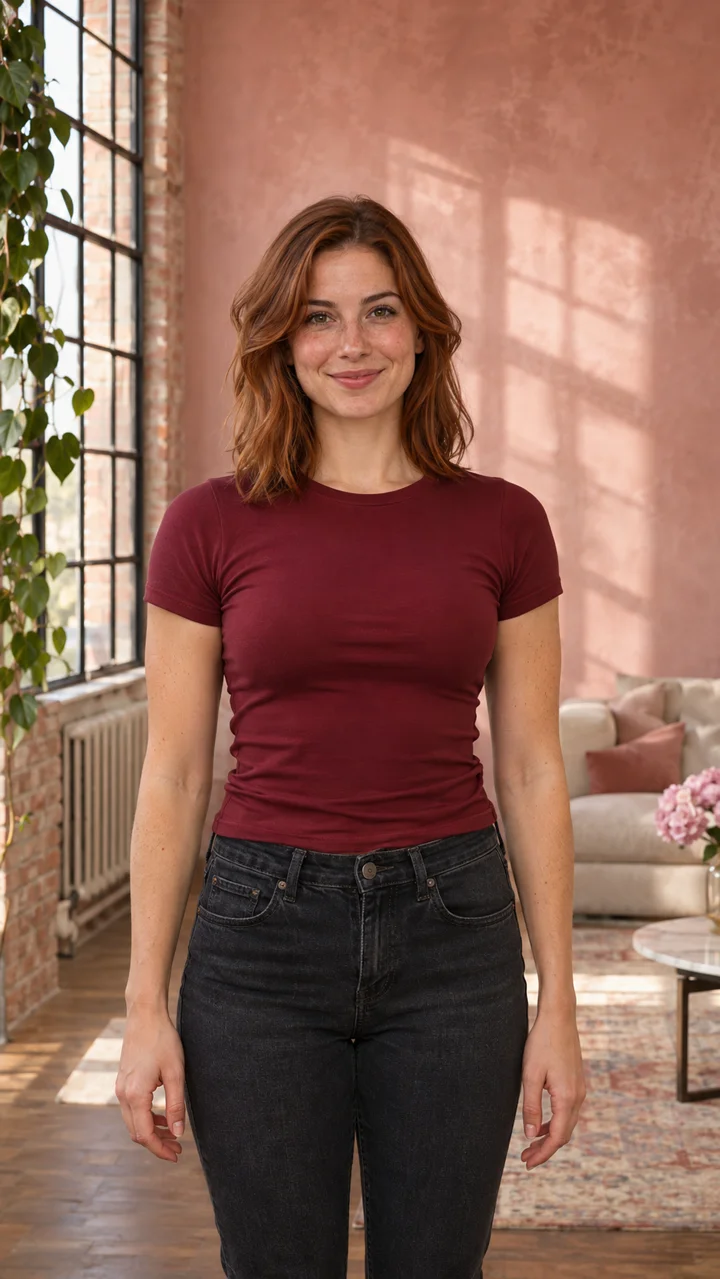
Bicep Heart AI turns a single adult portrait into a short arm-heart performance. The intended sequence is relaxed pose, one-arm flex, then an opposite-hand curve that completes a small heart at the upper arm. VidMake AI uses your photo to guide the complete person and visible outfit. The format is a 7-second vertical video with newly generated instrumental music. It is a fictional portrait animation, not muscle growth or a fitness assessment. Facial details, fingers and the final heart outline can vary between generations.
For the physical pose, Mathrubhumi describes a fist near the head and the opposite hand curved against the inside of the bicep. This explains the gesture, rather than establishing how accurately an AI tool reproduces it. Mathrubhumi’s bicep heart walkthrough
How to create your bicep heart video
Choose your bicep heart photo
For your bicep heart video, upload a JPG, PNG or WebP photo, up to 10 MB, with at least 300 pixels on each side. Use your own adult photo or one you have permission to animate. Frame the person from head to waist and leave room around both elbows. Keep hands empty and use even light. You do not need to pose in the source photo.
Review your Bicep Heart AI settings
Bicep Heart AI starts with Basic and 480p selected. Basic offers 480p and 720p; Pro also offers 1080p. The duration stays at 7 seconds and the frame stays vertical at 9:16. Settings update the quote. An optional note can request a setting or lighting. No full prompt is needed.
Create and review your bicep heart video
To create your bicep heart video, sign in, confirm the displayed credits and select Generate my video when generation is available. Follow progress here or in My videos. Before starting another request after a connection problem, check whether the first job was saved. Each new generation consumes credits.
Save your finished arm-heart video
Watch your complete bicep heart video before downloading. Check the face, outfit, hands, elbows and held heart shape. Listen to the music as well. Save the finished video to your computer or use the phone download option on the result card. For a new generation, try a less cropped photo; resolution alone does not guarantee accurate anatomy.
Best Photos and Settings for the Bicep Heart Pose
Choose for the details you need to see.
- A bicep heart pose with breathing room
- For a clear bicep heart pose, keep the face, shoulders and both arms visible. Avoid tight selfies that hide sleeves or body proportions. Leave space beside the head for the raised fist, and avoid hands holding a phone or covering the chest. If your outfit matters, upload a photo that shows its real neckline, sleeve length and color under neutral light.
- Basic + 480p for your first bicep heart video
- At the current 7-second preset, Basic at 480p uses 105 credits. Choose it when your priority is the lowest available quote. Review the small heart and fingers at playback size before deciding whether you need another version. The quote does not guarantee a particular face or pose.
- A higher-resolution bicep heart video
- For your bicep heart video, choose 720p when you want more output pixels, or select Pro to make 1080p available. More pixels do not guarantee better likeness, motion or fingers. Start from a good source photo whichever setting you select.
- A simple setting for the arm-heart pose
- An uncluttered setting keeps attention on the arm-heart pose. If you want a change, describe it briefly, such as “Keep my burgundy shirt; warm window light in a simple loft.” Bicep Heart AI uses your photo as the complete appearance guide. Notes can request a scene, but should not ask for extra performers, muscle growth or a different heart gesture.
When posting a realistic AI portrait performance on YouTube, follow its disclosure guidance for content that makes a real person appear to do something they did not do. Review the finished clip and identify it appropriately. YouTube’s AI disclosure guidance
A FEW THINGS TO KNOW
Before You Flex
Is the bicep heart pose the same as an overhead heart?
No. The bicep heart trend uses a flexed upper arm and the opposite hand near its inner edge. An overhead heart raises both arms into a large outline above the head. Here, the small heart should appear at the upper arm, with the face and both hands still visible.
Does Bicep Heart AI keep my clothes and face?
Bicep Heart AI uses your photo to guide the whole person, including recognizable facial features, hair, body proportions and the visible outfit. AI can still change fine details, so check clothing, accessories, hands and likeness throughout the clip before sharing.
Does the bicep heart video include the original song?
Your bicep heart video includes newly generated instrumental music, not a copy of a particular TikTok recording or an artist’s voice. Choose appropriately licensed audio in your publishing app if a specific song matters. This page does not provide a song-upload or exact beat-sync control.
Can Bicep Heart AI animate two people or a pet?
Bicep Heart AI is designed for one adult. Use a single-person photo. For a pet performance, use the pet style in Shan Shen Bu AI Dance. For a two-role scene, try the Tiptoeing template instead.
Why did my bicep heart video show a flex without a clear heart?
A bicep heart needs both the flex and the completed hand shape. Cropped elbows, obscured hands or an unclear source photo can make the result difficult to read, without establishing the exact cause. Check that the opposite hand reaches the inner upper arm and that the final pose holds. Review the source photo before spending credits again.
What happens if my bicep heart video fails?
Confirmed failed Bicep Heart AI generations return credits. If a request cannot be confirmed, check My videos and your credit history before submitting again. A connection problem alone does not confirm failure or returned credits.